Getting Started with CropStudio
Welcome to CropStudio! This guide will help you get up and running with professional image processing in minutes.
Quick Start
Download, install, and start processing images in under 5 minutes.
Installation
System Requirements
Windows
- Windows 10/11 (64-bit)
- 4GB RAM minimum
- 2GB free disk space
- DirectX 11 compatible graphics
Download & Install
- Download: Visit our download page and select your operating system
- Run Installer: Double-click the downloaded file and follow the installation wizard
- Launch: Start CropStudio from your applications menu or desktop shortcut
- Activate: Enter your license key or start the demo version
Basic Usage
Your First Image
Load Images
Click "Add Images" or drag and drop files into the application window.
Select Aspect Ratio
Choose from 50+ predefined ratios or create custom dimensions.
Choose Crop Mode
Select center crop, face detection, or manual positioning.
Process & Save
Click "Process Images" and choose your output folder.
Interface Overview
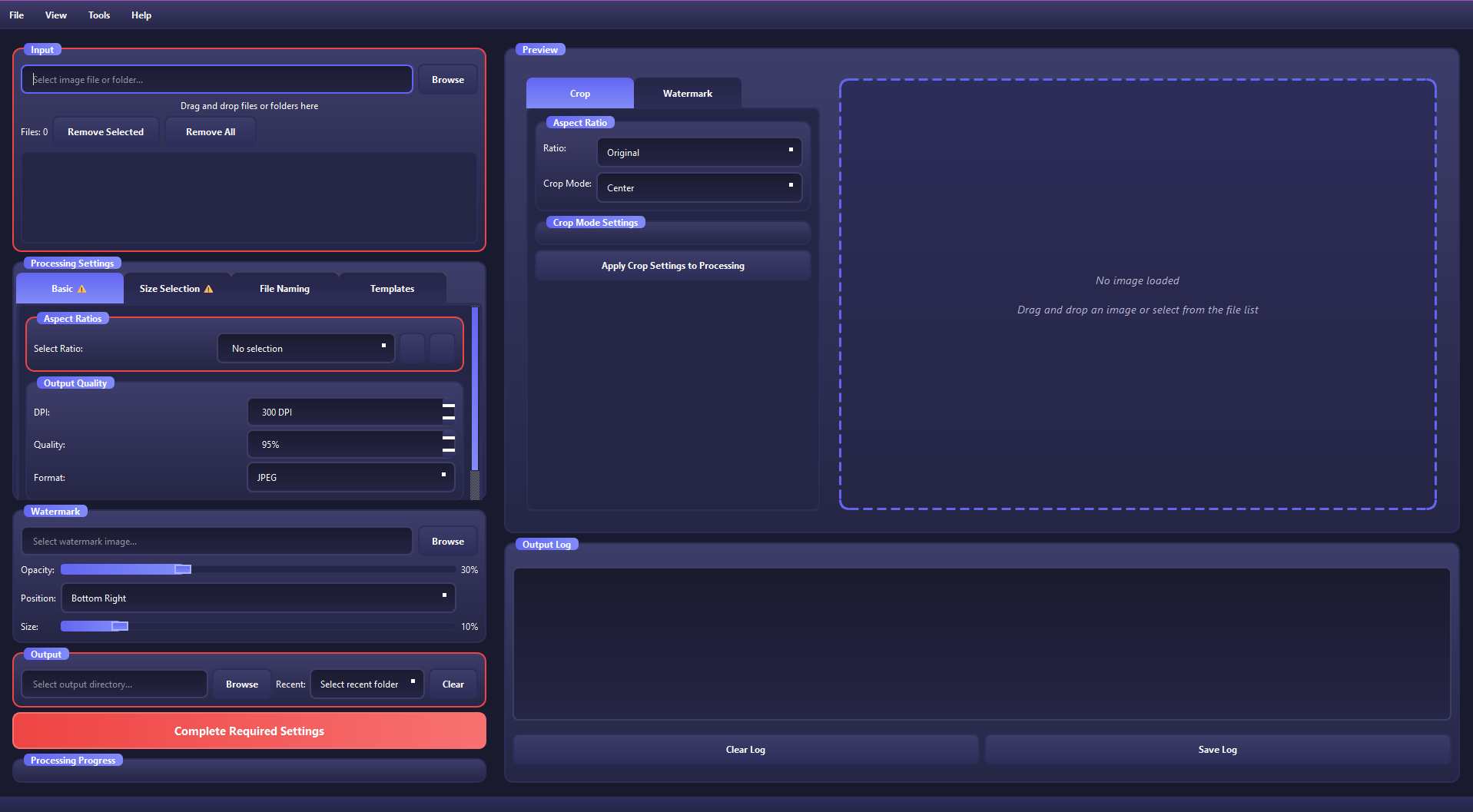
Core Features
Smart Cropping
CropStudio offers multiple cropping modes to suit your needs:
Center Crop
Crops from the center of the image, perfect for symmetrical subjects.
Face Detection
Automatically detects and centers on faces in your images.
Manual Position
Drag to position the crop area exactly where you want it.
Aspect Ratio Management
Choose from popular social media ratios or create custom dimensions:
Batch Processing
Process hundreds of images simultaneously with intelligent threading and memory optimization.
Batch Workflow
- Select Images: Choose multiple files or entire folders
- Apply Settings: Configure once, apply to all images
- Preview: Review how each image will be processed
- Process: Run batch processing with progress tracking
- Organize: Automatically organize output with custom naming
Memory Management
For large batches, CropStudio automatically manages memory usage to prevent system slowdown.
AI Face Detection
Our advanced AI ensures faces stay perfectly centered during cropping operations.
How It Works
Detection
AI scans the image to identify faces and facial features
Positioning
Calculates the optimal crop position to keep faces centered
Cropping
Applies the crop while maintaining face position and composition
Face Detection Tips
- Works best with clear, well-lit faces
- Supports multiple faces in a single image
- Maintains natural composition and framing
- Can be combined with manual adjustments
Professional Watermarking
Add professional watermarks with precise positioning and opacity control.
Watermark Options
Advanced Options
Performance Settings
Threading
Configure the number of processing threads for optimal performance on your system.
Memory Optimization
Adjust memory usage for large batch processing operations.
Quality Settings
Control output quality and file size for different use cases.
File Organization
Use template-based naming and flexible folder organization:
Template Examples
{original_name}_{ratio}_{mode}
Result: photo_1_16x9_face.jpg
Date Formatting
{date}_{original_name}
Result: 2024-01-15_photo.jpg
Troubleshooting
Application Won't Start
Solution: Check system requirements and ensure all dependencies are installed.
Slow Processing
Solution: Reduce batch size or adjust threading settings in preferences.
Face Detection Not Working
Solution: Ensure faces are clearly visible and well-lit in the images.
Memory Errors
Solution: Close other applications and reduce batch size.
Frequently Asked Questions
What image formats are supported?
CropStudio supports JPEG, PNG, TIFF, BMP, and WebP formats for both input and output.
Can I process images in different aspect ratios simultaneously?
Yes! You can create multiple output configurations and process the same images to different ratios in one batch.
Is there a limit on batch size?
There's no hard limit, but performance depends on your system's memory and processing power.
Can I save my settings for future use?
Yes! CropStudio allows you to save and load custom presets for different workflows.
Does the demo version have limitations?
The demo version is limited to single image processing and basic features for 1 week.